

LEDMall Blog
NovaStar AD20 Offline Playback: What Keeps Running When the Internet Drops?
Nov
NovaStar AD20 offline playback starts with a program that has finished transferring to the player and is already running in asynchronous mode. The AD20 can play an internal media source in that mode. If the storefront loses internet access, the thing to prove is whether the installed program continues, changes slots on time, and comes back after a restart while the site is still offline. Those are three separate outcomes. The AD20 specification documents the internal source but leaves the behavior of a particular schedule and firmware combination to be checked on the deployed setup.
That distinction matters when a store manager has been promised that the sign will carry on through an internet outage. A looping test clip can stay on screen while the next daypart fails to start. The screen can also recover perfectly when the router comes back and still fail the more important test, which is a cold start with the router down. The acceptance plan below is for the integrator handing over one unattended advertising screen. It includes a small example schedule, stop conditions, and the information needed for a quote.
1. Which path does NovaStar AD20 offline playback use?
Start at the actual lit screen and trace the picture back. In asynchronous mode the active media source is internal. In synchronous mode the active source is HDMI. NovaStar’s August 29, 2025 V1.0.1 specification describes the mode button and indicator on specification page 4. The indicated mode is worth recording beside a photo of the screen. A change in mode during a recovery attempt changes what the test is measuring.
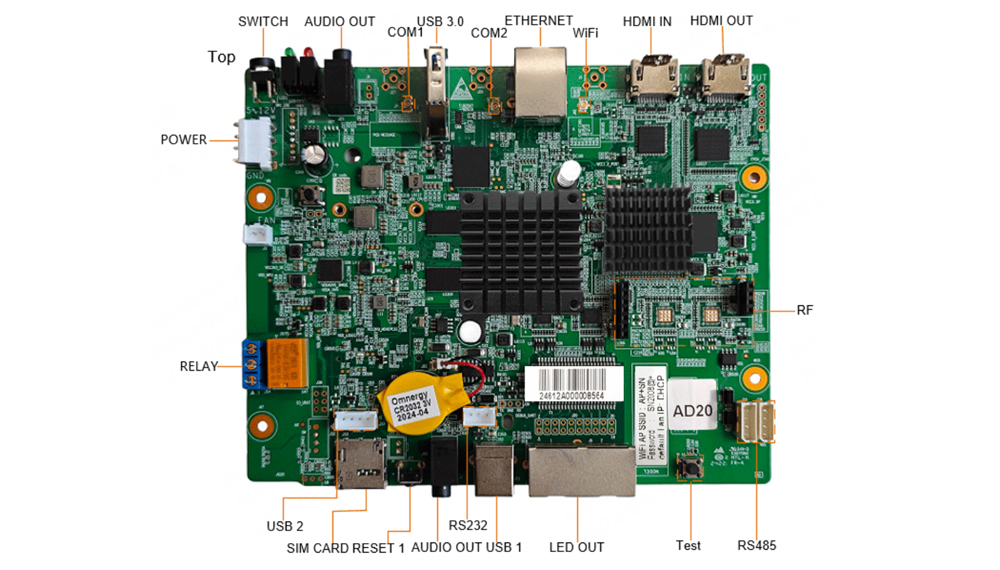
Then trace the path used to change the program. A local operator can use a supported direct or local connection. A remote operator relies on a working route to the chosen publishing service. The product information describes direct USB Type-B publishing, a management Ethernet port, Wi-Fi access-point and station modes, and optional 4G. The two LED output ports are screen-data outputs. Mark the management connection on the drawing before anyone touches cabling. A restart test should leave the approved LED mapping and receiver chain intact.
| Path | What you can observe | What to verify separately |
|---|---|---|
| Internal asynchronous program | The exact program identifier on the live LED screen | Whether it survives a restart, changes slots, and ends at the intended date |
| USB Type-A program | A known package playing from the supported USB workflow | Whether the package is copied, how it is activated, and behavior after drive removal |
| Synchronous HDMI source | The picture from a connected external source | How that source behaves offline and how staff return to internal playback |
| Local LAN or direct connection | Whether setup or publishing is available from the designated local device | Whether that path survives the specific router or building failure |
| Remote publishing and monitoring | A remote management confirmation and an on-screen proof of display | Cloud access, reconnect time, and what happens to queued changes |
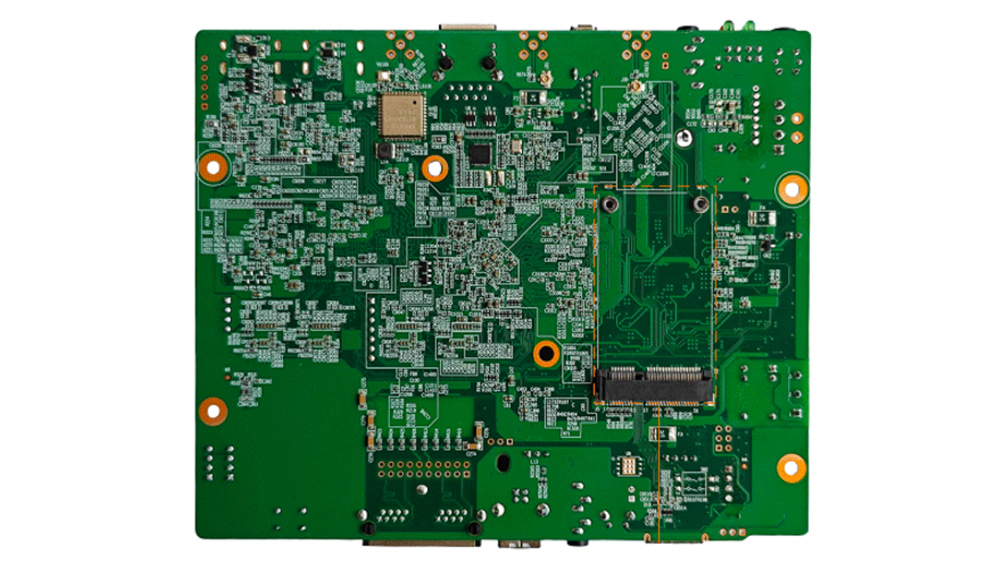
Use the AD20 playback mode guide if you are still deciding between an internal program and a live HDMI input. For procurement, start with the AD20 hardware listing and the AD20 V1.0.1 specification. Pages 2 through 5 of the specification cover the publishing connections, mode selection, USB constraints and status indicators used in this test.
2. Give the test content a deadline
Use two visibly different pieces of content, with the program version printed on both. A large slate reading BASELINE A tells you the current program is alive. A second slate reading BREAKFAST B tells you the clock reached the next slot and the correct asset loaded. Put a moving element in each slate so a still frame is easy to recognize. If the job uses sound, add an obvious spoken tag or tone and confirm the intended audio route separately.
Here is an illustrative schedule, with no real store or test result implied. Put a 20-second A clip in one slot and a 30-second B clip in the next. Set the second slot a few minutes away so you can observe the change on the bench. Measure when it occurs against a reference clock, including the time zone. Display A and B on the same layout with the same output mapping. If B starts on time but its audio or styling differs, you have something narrower to investigate than the scheduling system.
Include the actual media the customer will publish. A slate that plays proves the slate worked on that configuration. Before handover, substitute at least one ordinary production export and a representative production-length playlist. Record the encoded resolution, codec, frame rate and file size. The V1.0.1 decoding table specifies up to 30 fps for its H.264 entry and up to 60 fps for H.265/HEVC under the listed conditions. The headline decoding claim is broader. A production H.264 export at 60 fps should be tested as its own case. A device that decodes a 4K file still drives a sign within its specified 1.3-million-pixel LED load.
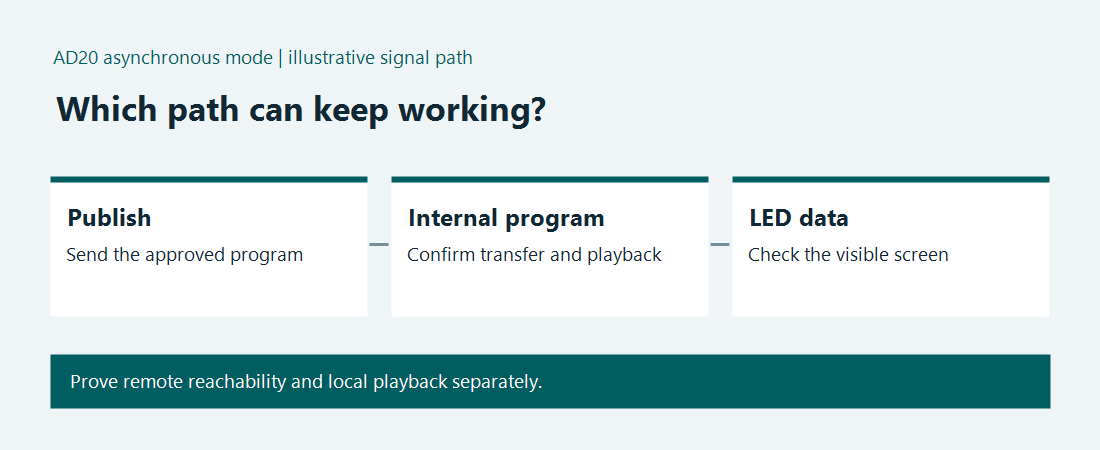
Export or retain the approved program before the test. Record its name, revision, encoding and verification time. Keep a short control program that is easy to recognize and quick to send. Put the planned restoration steps on the same sheet. If the sign is already in service, run these checks on a spare setup or in an agreed maintenance window. An ordinary controlled restart is enough for this test. A factory reset changes the configuration and would answer a different question.
3. Prove the outage, cold start and return to service
With the program already showing, disconnect the external uplink in a controlled test environment and keep the sign’s power and LED-data connections in place. Have the site network administrator verify that cellular failover or another uplink has not silently kept the player online. Keep the local LAN up for the first run if that matches a common site outage. If losing the entire router is realistic for the site, test that separately and record the difference in local operator access.
| Stage | Record | Example acceptance condition |
|---|---|---|
| Normal service | Mode, exact program ID, player time and visible output | Baseline program plays on the approved display mapping |
| External uplink down | Confirmed loss of remote reachability, then on-screen activity | Approved media remains active through the agreed outage window |
| Next schedule slot | Time and picture of the first B frame | Correct slot starts within the agreed time tolerance |
| Offline cold start | Time from restart to correct program and active slot | Correct program returns within the agreed recovery interval |
| Uplink restored | Player reachable, new test program received and seen on screen | Remote publishing returns without an unapproved campaign appearing |
For the cold start, keep the uplink down and restart the device using the site’s approved procedure. Note how long the screen is blank, any splash or fallback picture, the first visible program ID, and the player clock after boot. A photograph of the first live frame and a timestamp are more informative than a checkbox reading “reboot OK.” If the screen comes back on the wrong slot, record what it picked and how long it stayed there. Leave the outage open long enough to pass at least one real schedule boundary.
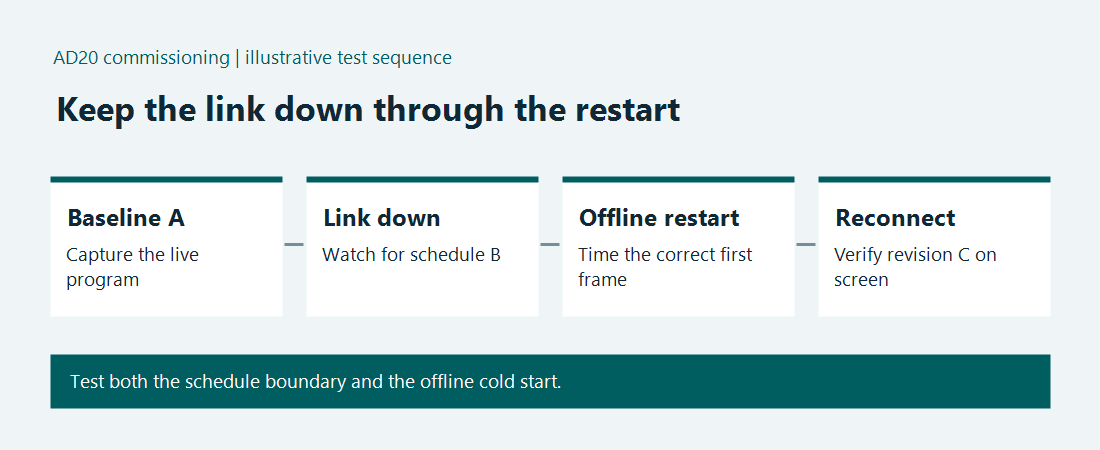
On restoration, wait for the official management service to report the player reachable. Then publish a new test revision C through the intended production route and confirm that it appears on the screen. A connected status is useful for network diagnosis. It also matters which dated asset is actually displayed. If a remote update was attempted during the outage, document whether it was queued, rejected or applied later before clearing the test content. Restore the approved program and confirm the final visible frame.
01. Decide how long the observations have to last
A five-minute bench outage is a useful first pass. It leaves a question if the site regularly stays disconnected overnight. The relevant interval starts when remote access disappears and ends at the latest event that the site expects the player to handle locally. For a store that changes from standard advertising to an opening promotion, include the overnight interval or reproduce the actual calendar and opening boundary in a controlled test. Take a copy of the schedule first and make sure the bench returns to production time afterward.
Evaluate recovery against what a visitor sees. A sign at a store entrance may need a correct first image quickly, while a screen inside a closed store may have longer to recover. Agree the time limit with the customer and record the measured blank interval separately from the time it takes for the management system to reconnect. This lets the buyer decide whether any extra recovery path is worth adding to the quote. If the test misses the limit, save the first wrong frame or blank period on video so the team has the same evidence when it repeats the run.
4. What a failed observation tells you
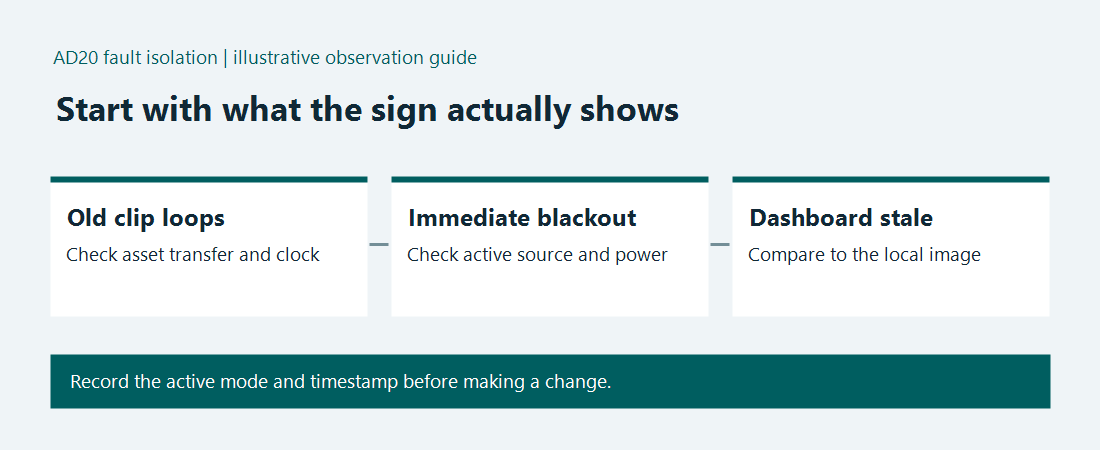
When an old clip keeps moving but the next slot never appears, record the clock, time zone, date and schedule first. A new asset can also be missing from the local transfer even though part of the program plays. Bring back the same slot using the simple reference clip to separate the schedule from media decoding. If the reference works and the production file fails, compare its export settings with the format-specific table and check the complete transfer.
When the display blacks out immediately, note whether the management loss also interrupted the real source. The screen may have been running HDMI from a network-dependent device, or the outage simulation may have disconnected something the sign’s video path actually needs. Look for the selected source and confirm power, active program, cabling and full-size test picture on the approved display mapping. Changing several settings in one attempt can hide which part restored service.
When the screen is correct but the remote dashboard becomes stale, compare the last management timestamp with on-site evidence. Treat the visible screen and management status as two entries in the log. If the project needs remote evidence throughout an outage, it needs a design that provides a viable remote path through the chosen failure, an agreed offline evidence procedure, or both. The optional AD20 4G module belongs in that discussion. A quoted module, mobile service and confirmed network behavior are separate parts of the solution.
For more than one display, capture the difference between pictures before and after the outage. NovaStar specifies NTP synchronization and describes GPS or RF synchronization with the relevant hardware. A run in which each sign plays its content can still fail a requirement for several signs to change together. Set a measurable timing tolerance and test the actual time source under the intended outage condition.
5. Write the handover before unpacking the next player
Give the operator the program name they should see, where to check it, and the escalation path when the network is unavailable. State whether a local operator is expected to use a maintenance laptop, supported USB package or no local publishing at all. If USB is part of the plan, label the known-good drive and package revision. V1.0.1 lists FAT32 or NTFS, a 2 GB to 128 GB drive range and a nonempty file smaller than 4 GB per file. Keep a second verified copy of the normal program where the authorized staff can retrieve it.
Write the limits in operational terms. A useful handover might say that the current program must play through the agreed outage, return within the agreed restart interval and still change at the designated minute. Put duration and tolerance values into the agreement with the buyer. Include the board revision, firmware, program revision and timing source so future changes can be traced back to the accepted configuration. Keep an empty space for actual measurements instead of treating the example sequence as a completed test.
Retain both pictures from the handover: the final production image and the versioned test image. The former helps staff spot the wrong campaign, and the latter gives a technician a known asset for diagnosis. When the player or scheduling app receives an update, start with the short sequence again. If the schedule, media format or recovery requirement also changes, rerun the affected production tests before rolling out the new configuration to more displays.
Record which actions the on-site operator can perform without the installer. Someone may have permission to view the status but need approval to replace a program. A spare drive is helpful only if the correct package is on it and the person on duty knows when to use it. Have that person describe what they would do if A still runs after B is due. Finish the test by asking them to identify the restored production version on the screen. That catches a handover ambiguity that a hardware demonstration alone can miss.
Frequently asked questions
Does a remote publishing acknowledgment prove the new ad is already playing?
Use the service acknowledgment to check progress and an on-screen program identifier to confirm playback. This is especially useful after reconnecting, when an older program may still be active or a pending update may only just have started.
Can a tablet still reach the AD20 when the internet provider is down?
The player and tablet may retain a path over the local router, or use the documented access-point mode if the site has approved it. Test the exact local route from the assigned device. An internet failure and a failed local router have different effects on that route.
How do I tell whether a screen finished a clip or just froze on a plausible frame?
Use a moving counter or visible sequence of large labels in the test clip, then capture video across one whole loop. A single still photograph verifies layout but cannot show that the timeline is advancing.
Should I leave the emergency USB drive plugged in all the time?
Confirm how your firmware handles the package and what it does on restart with and without the drive. Keep the drive accessible to authorized staff. Specify the expected behavior in the handover for the site’s chosen USB workflow.
What if the sign must show a different message during a prolonged outage?
Include that message in the acceptance plan. Ask how it will be preloaded or selected locally, who has authority to select it, and how a remote operator confirms the normal message is restored. Test the exact changeover with the real permissions and connection path.
Can the AD20 recover a campaign that had only partly transferred before the link dropped?
The retained specification does not establish the outcome of an interrupted package transfer. Test that failure separately on a bench if it is part of the requirement. Record what the screen shows until a complete program is transferred and approved.
Quote the AD20 around the way the sign will operate
Send the sign’s native width and height in pixels, receiving-card model, normal media format, number of scheduled slots and expected outage duration. Describe whether staff have a local maintenance device, whether 4G or multi-screen timing is needed, and how quickly the correct program must return after a restart. Ask LED-Mall to check your AD20 configuration with the proposed program and commissioning conditions before the parts list is final.